Email notifications
Understand notification status
Notification status is separate from whether the message was saved. Set up notifications first, then use each message’s timeline to decide what to do.
Enable, disable or change a notification recipient
- Open Recipients and add the email address that should receive alerts. Follow its verification email and select Verify email on the page; the address should show Verified.
- Open Forms → your form → Form settings. Check Send new-message email notifications, select a verified, unblocked address, then save.
- Under Email content, choose Reminder only (recommended) to receive form details and an inbox link without visitors’ answers or a Reply-To address. Choose Include submitted fields only when you want the message to contain those values. Newly enabled notifications default to reminder mode; existing notification settings remain as they are.
- To change the recipient, verify the new address first, then select it in form settings. To disable notifications, uncheck the option and save; future messages still appear in Inbox without email.
- Send one test from your website and open that record in Inbox to view its notification timeline. Check the recipient mailbox, including spam, only when notifications are enabled.
Earlier inbox-only messages are not sent retroactively. New submissions use the updated recipient and content settings. Once an email has been delivered, changing settings or deleting its submission cannot recall the copy in the recipient’s mailbox; a send already in progress may still arrive.
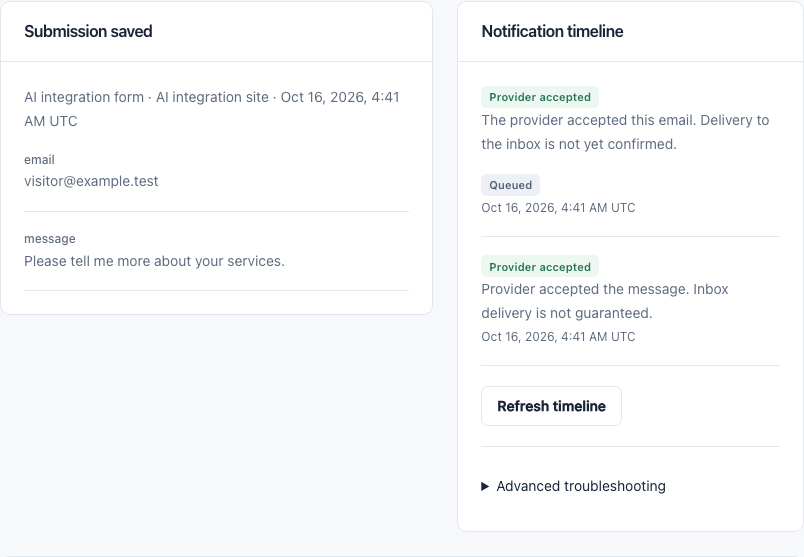
Statuses and next steps
| Status | Meaning | Next step |
|---|---|---|
Email notifications off | The form has new-message email notifications turned off. The message is saved in your inbox only; no notification job exists. Turn notifications on in Form settings — messages received while they were off are not sent retroactively. | Enable alerts for future messages if needed |
Queued or Sending | The notification is waiting for a worker or is being sent. A queued retry does not use another submission. | Wait for a status update |
Provider accepted | The provider accepted the send request. This does not confirm delivery to the recipient’s mail server or inbox. | Check the later delivery status |
Delivered | The provider reports that the receiving mail server accepted the message. Inbox placement is not guaranteed; check spam, filtering, or quarantine rules if it is not visible. | Check spam or corporate quarantine rules |
Delayed | The provider reports a delivery delay and may retry. Wait for the status to update instead of sending a duplicate. | Wait for the provider to retry |
Failed | The provider confirmed that this attempt failed. Review the timeline reason and recipient configuration, then use Retry notification if the action is available. Safety limits apply. | Address the cause and retry when the button is available |
Unknown | The send outcome could not be confirmed. Check provider status from the submission detail or wait for a verified provider update. Do not resend until the outcome is known, because the first email may already have been accepted. | Wait for confirmation; contact support if unresolved |
Bounced or Blocked | The recipient’s mail server rejected the message or sending was suppressed. Choose a different verified, unblocked recipient in Form settings before retrying. Reverification does not clear a bounce or complaint suppression. | Choose a verified, unblocked address and follow the offered action |
Retrying a notification creates no new submission and uses no extra allowance. Email not received? Follow the troubleshooting steps。
Still need help? Contact support@formpostbox.com. Include the guide topic and redacted error details, without keys or visitor messages.
Browse all topics ↑